
Your Huff account and your purchases
Can't find your account? Has premium gone missing? This page sorts it out in a few short steps.
Two accounts, two jobs
There are two different accounts. They are not the same thing, even if they use the same email.
1. Your store account
On iPhone, this is your Apple ID. On Android, it's the Google account in the Play Store. It pays for Huff and keeps your purchase safe. You already have one.
2. Your Huff account
This is a sign-in with your email, inside the Huff app. It saves your sessions and stats, so they're safe if you change phones. You don't have to make one.
The key thing: buying Huff in the App Store or Google Play does not make a Huff account. Lots of people have premium without ever making one. That's fine.
Bought Huff on our website? That's different. A website purchase belongs to your Huff account. Sign in to the app with the email you paid with, and premium is there.
"We didn't find an account for" my email
When you type your email into Huff, you might see this:
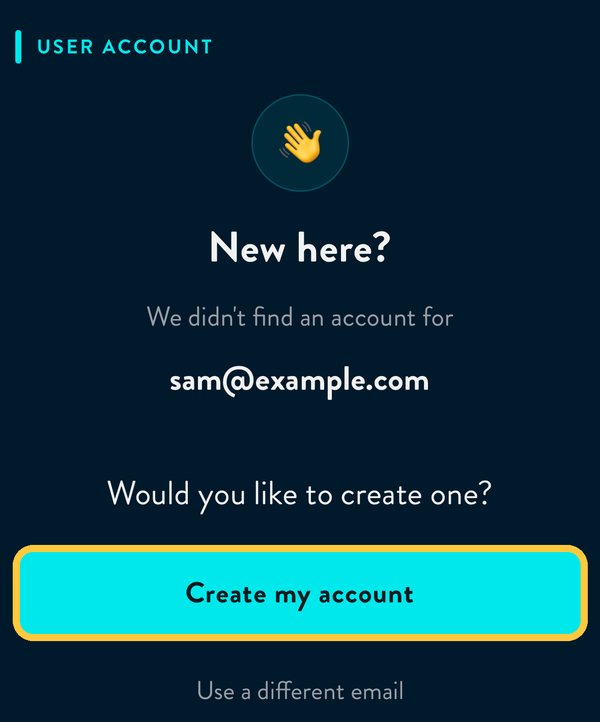
It means no Huff account uses that email. Most often, you bought Huff in the App Store or Google Play and never made a Huff account. Your purchase isn't lost.
Here's what to do:
- Check the email is spelt right. If you might have used a different email, tap Use a different email and try that one.
- Want to save your progress? Tap Create my account. The steps are below.
- Want premium back? Restore your purchase. You don't need a Huff account for that.
Create a Huff account
It takes about a minute. All you need is an email address. There's no password to remember.
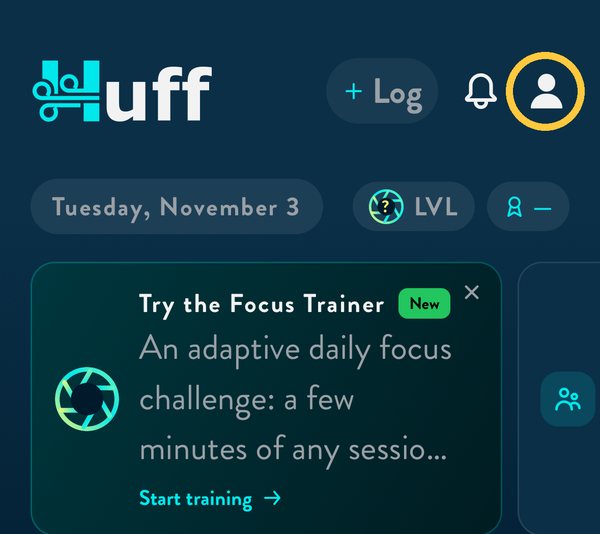
- Open Huff. Tap the person icon in the top right.
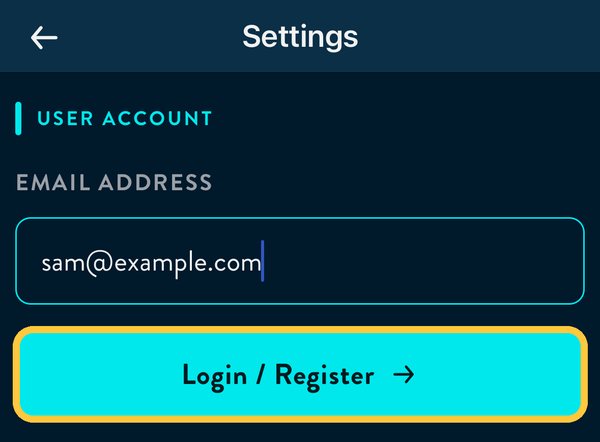
- Type your email address. Tap Login / Register.
- You'll see "New here?". Tap Create my account.
- We email you a 6-digit code. It usually arrives within a minute. If you can't see it, check your spam folder.
- Type the code into Huff.
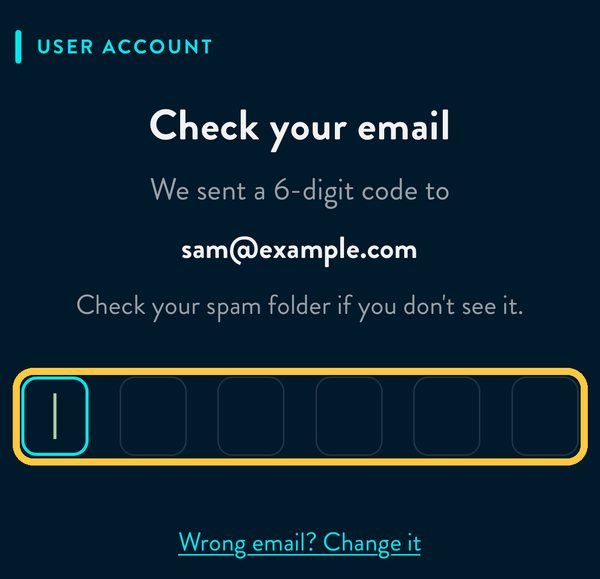
- That's it. You're signed in, and your email shows at the top. If Huff asks which emails you'd like from us, tick the ones you want and tap Continue.
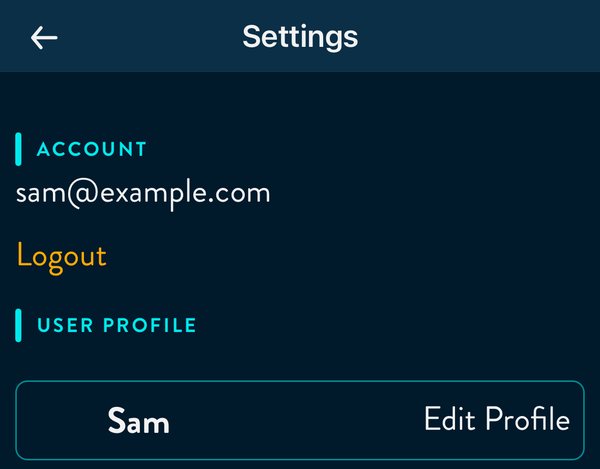
Already have an account? It's the same steps. Huff skips "New here?" and goes straight to the code.
Code not working? A code lasts 15 minutes. If it has run out, tap Send a new code.
Get premium back (restore a purchase)
Do this if you bought a subscription or Lifetime in the App Store or Google Play, and Huff isn't showing premium. For example, on a new phone or after reinstalling Huff.
First, check your phone's store account. It must be the one you paid with.
- iPhone: open the Settings app and tap your name at the top. That's your Apple ID.
- Android: open the Play Store app and tap your picture in the top right. That's your Google account. If you have more than one, switch to the one you paid with.
Then, in Huff:
- Tap the person icon in the top right.
- Tap Subscription at the bottom of the screen.
- Under "Previously purchased Huff?", tap Restore purchases.
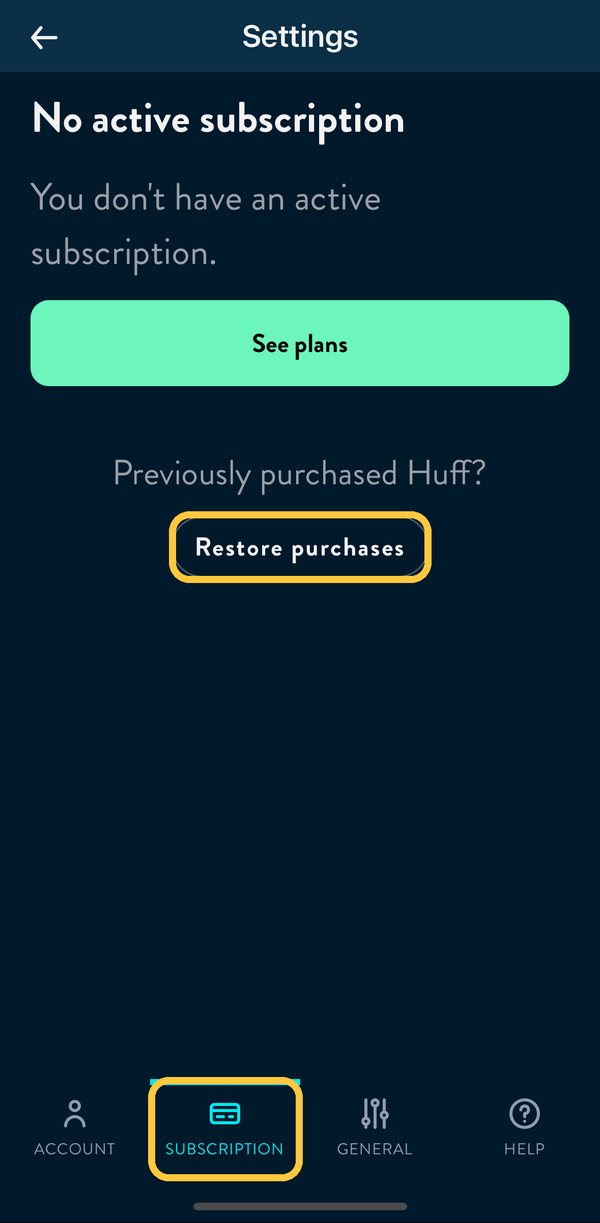
- If your phone asks, sign in to your Apple ID or Google account.
- You'll see "Purchases restored". Premium is back.
It works the same on iPhone and Android. You'll also find Restore purchases on the screen that shows our plans. You don't need a Huff account to restore.
Tip: once premium is back, sign in to a Huff account on that phone. Then signing in with the same email on your other phones brings premium there too.
Restore didn't work?
Check these first:
- Is your phone signed in to the store account you paid with? See the step above.
- Did you buy on our website? Restore can't find it, because the store didn't sell it. Sign in to Huff with the email you paid with instead.
- Did you buy on an iPhone and now use Android, or the other way round? The new store can't see that purchase. Message us and we'll sort it out.
- Is Huff up to date? Update it from the App Store or Play Store, then try again.
Still stuck? Message us. A real person replies.
- In Huff, tap the person icon, then Help at the bottom.
- Tap Messages and write to us.
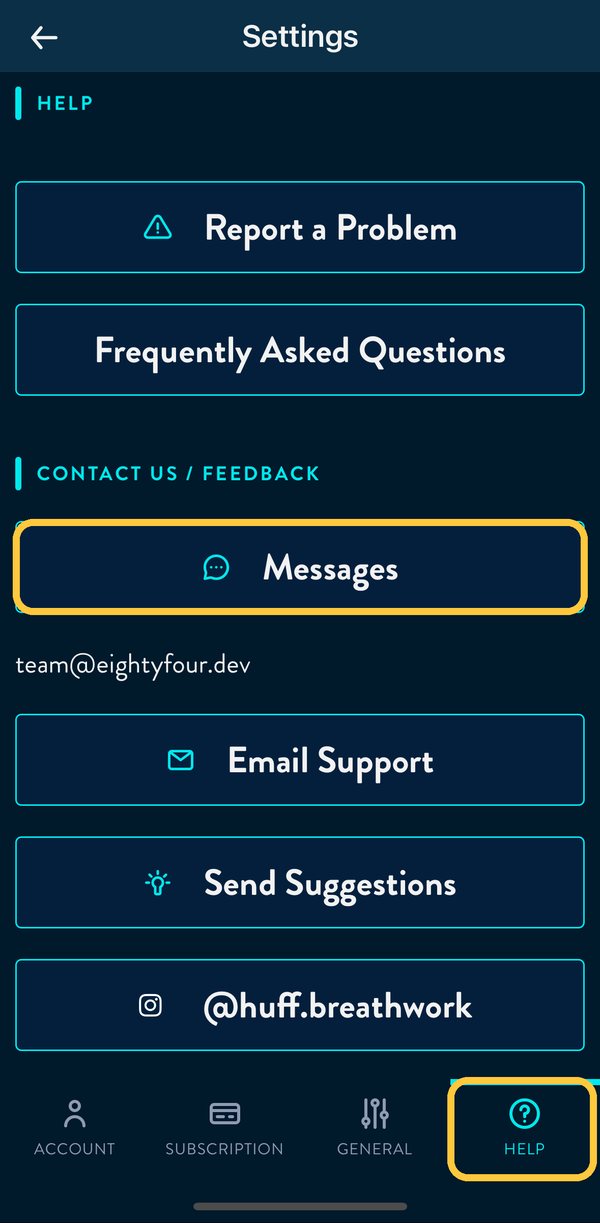
Or email us at team@eightyfour.dev.
Please tell us:
- Your phone: iPhone or Android.
- Where you bought Huff: App Store, Google Play or our website.
- What you bought (a subscription or Lifetime) and roughly when.
- The order number from your receipt email, if you have it. Apple's starts with "M". Google's starts with "GPA.".
- Your Huff account email, if you made one.
Please never send us your password. We will never ask for it.